
Note: Depending on your library configuration and whether it uses a customized landing page, the options described below may look different from what you see.
Option 1: Using the Search Bar
- Locate the search bar in the top-right corner.
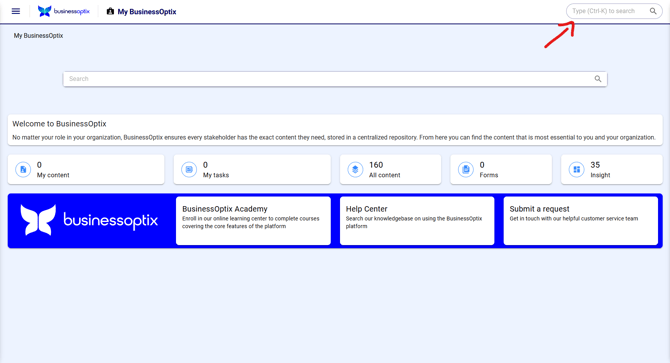
- Enter your model name in the search field.
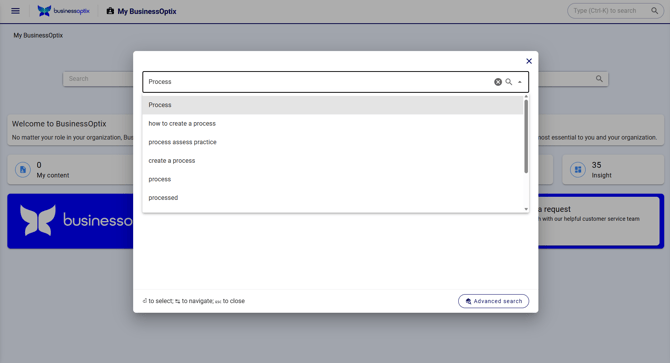
- Select the desired process from the results.
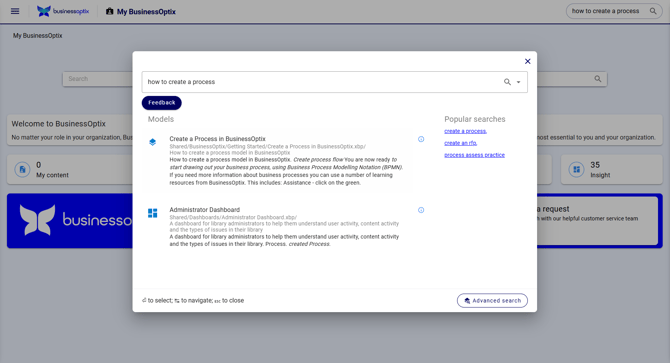
For more detailed information, click  at the bottom right. This allows you to to refine results by multiple fields such as model type, author, owner, status, RACI, and more.
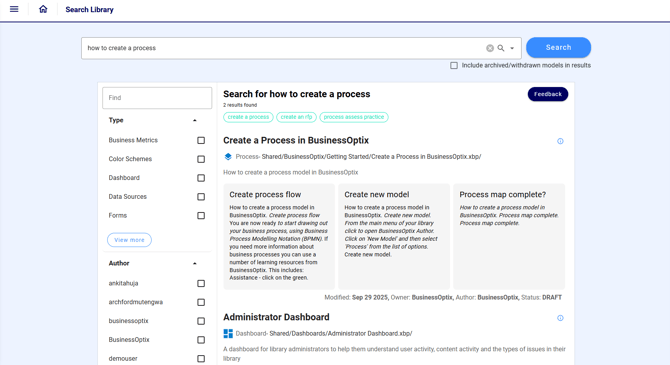 Please note: These fields are customizable, so the options you see may differ from the example shown.
Option 2: Using the Hamburger Menu
- Click the hamburger menu in the top-left corner.
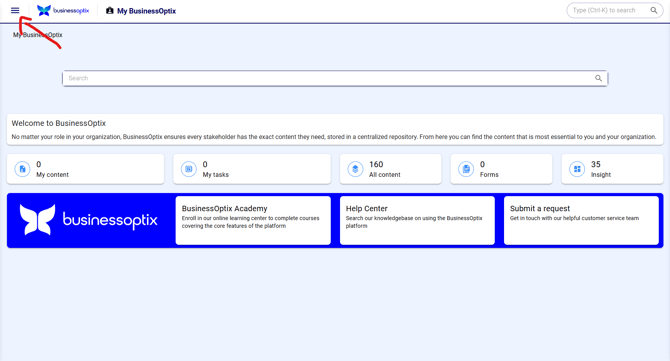
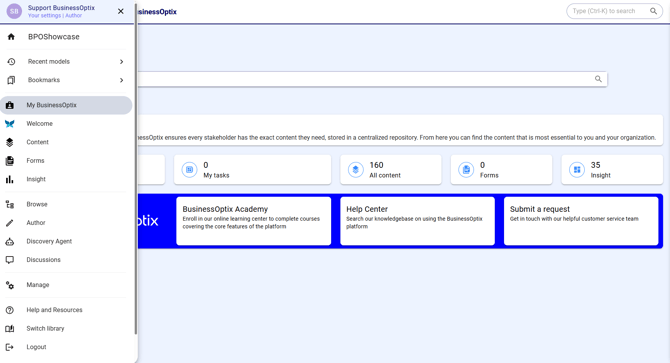
- The menu will expand as shown below, offering multiple navigation options:
- Browse – View your library’s folder structure
- Content – See a list of all available models in the library

- Bookmarks – Access models you have previously bookmarked

- Recent – Quickly open models you have recently accessed

- Browse – View your library’s folder structure
If you find no results when using the search bar, please reach out to us at helpme@businessoptix.com or submit a request.