
Overview
As an Admin, you can easily add users to your Library using the Manage Library menu. This allows you to control access and ensure the right people have the appropriate permissions.
Authentication methods supported:
-
Registration
- Single Sign-On (SSO)
Pre‑Requisites
-
You have Admin permissions in your Library.
- You are signed in to BusinessOptix.
Adding a User to a Library
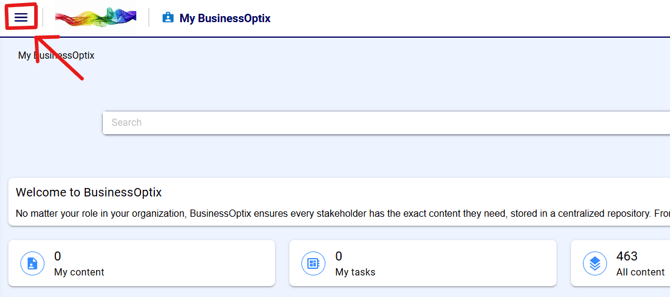
After signing in to a library, click the hamburger menu:
and navigate to Manage:
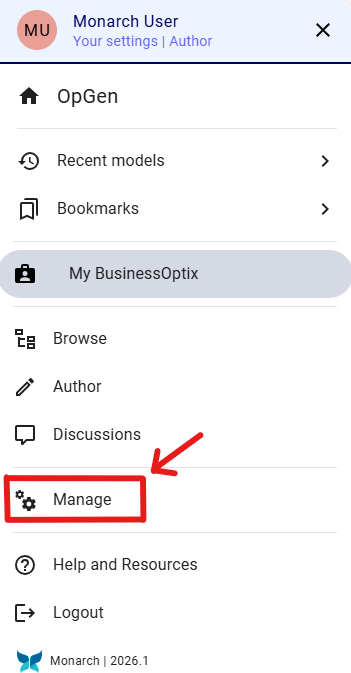
Note: Your menu may look slightly different depending on your Library’s configuration.
Through registration
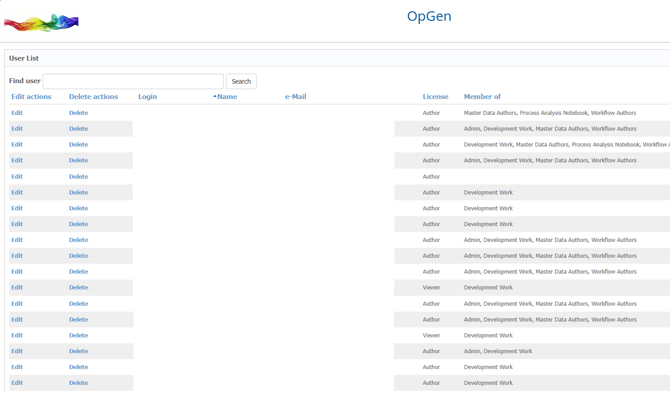
Once in the Manage Library area, you will see the current user list. From here, you can:
-
Edit or delete users
-
View login details, name, email, license type, and group memberships
Add single user at a time
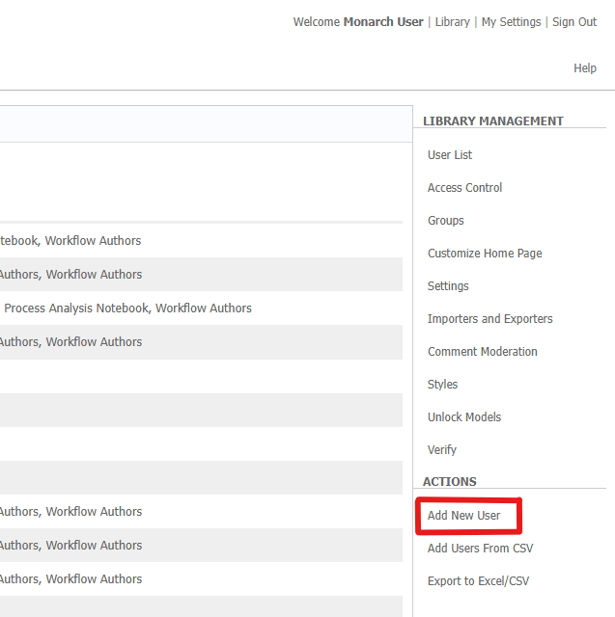
In the Actions menu (right side), click Add New User.
-
Enter the user details.
-
Select any groups the user should belong to.
-
Choose the appropriate license type.
-
Click Add User.
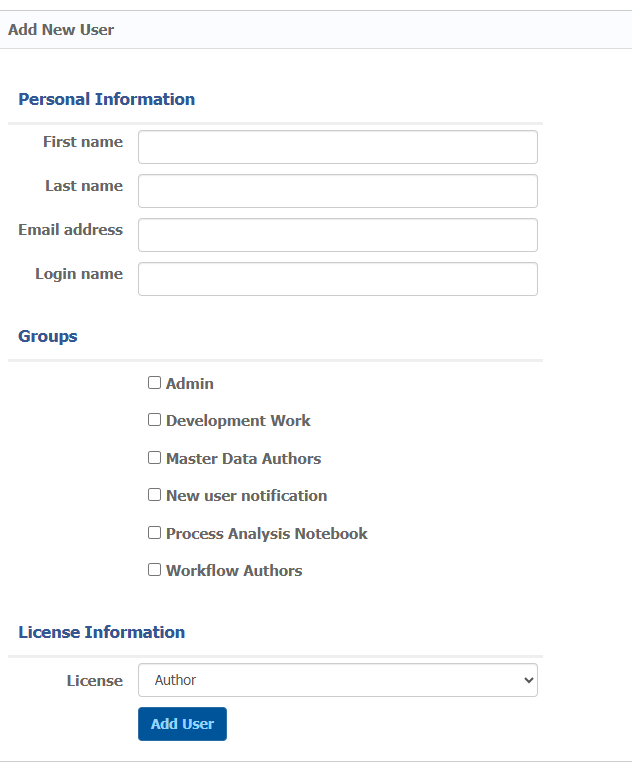
The user will receive an email with their login credentials and connection details.
Add Multiple Users (CSV Import)
Click Add Users From CSV.
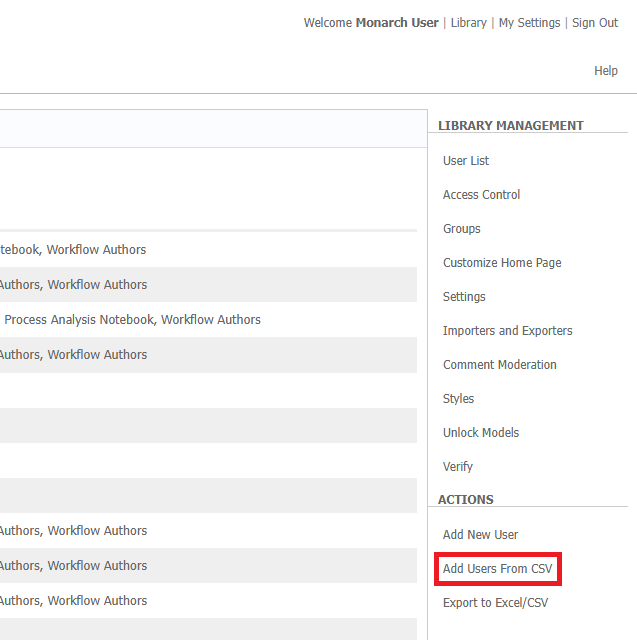
Upload a CSV file containing the users you want to add.
Prepare the CSV
Your CSV must include at least the following required columns:
| Column | Description |
| UserName | Login name for the user |
| FirstName | User's first name |
| LastName | User's last name |
| User's email address |
If any required column is missing, the import may fail.
Supported CSV Columns
| Column | Description |
| License | The user’s license type |
| Groups | Groups the user should be added to |

Through SSO
To enable SSO in your Library, please reach out to helpme@businessoptix.com