
This guide is for administrators who need to create and manage API bearer tokens for their users.
Overview
Bearer tokens grant API access to a specific library on behalf of a specific user. The token inherits all of the user's permissions within that library, so the API consumer can perform any action the user is authorised for — and nothing more.
Key characteristics:
- Tokens are scoped to a single library. A user who needs API access to multiple libraries will require a separate token for each.
- Tokens are tied to a user account. Any API activity carried out with the token is attributable to that user.
- Tokens have an expiry date, which the administrator sets during provisioning.
Prerequisites
- Bearer token capability must be enabled for the library. This is done by BusinessOptix Customer Support — contact them if the Tokens option is not visible in your Library Management menu.
- You must have an administrator role within the target library.
Accessing the Tokens Page
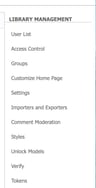 Navigate to the Tokens page via Library Management > Tokens in the management menu. The URL follows this pattern:
https://<hostname>/Manage/<libraryname>/Forms/Admin/Tokens.aspx
Creating a Bearer Token
From the Tokens page, select Add Token. You will be asked to provide three pieces of information:
- Reason — A description of what the token will be used for (e.g. "API Access"). This helps you identify the token later.
- For user — Select the user account the token will be associated with. The token will carry this user's permissions, so choose an account with the appropriate level of access for the intended integration.
- Expires — The date after which the token will no longer be valid. The token must be used before this date.
Click Add Token to generate the token. The token value will be displayed on screen immediately.
Important: Copy the token value straight away and store it securely. You will not be able to view the token again after leaving this page. If the token is lost, you will need to delete it and create a new one.
Managing Existing Tokens
The Tokens page displays a list of all tokens that have been issued for the library, showing the reason, associated user, and expiry date for each.

From this list you can:
- Delete a token — This revokes the token immediately. Any integrations using the token will stop working.
- Extend by 1 year — This extends the token's expiry date by one year from its current expiry. Use this to renew tokens for ongoing integrations without needing to generate a new token value.
Security Considerations
- Treat bearer tokens like passwords. They should be shared securely and never committed to source control or included in client-side code.
- Use the shortest practical expiry period for your use case.
- If a token is compromised, delete it immediately from the Tokens page and issue a replacement.
- Periodically review the Tokens page to ensure active tokens are still needed and associated with the correct users.