
Overview
As an Author, you may need to capture high‑level process information in tools outside BusinessOptix, such as Excel. To avoid manually recreating that work in BusinessOptix, you can use the CSV Import functionality to convert a comma‑separated values (CSV) file directly into a process model.
Pre-Requisites
-
The CSV Process Import extension must be enabled in your library.
- You have Author permissions in BusinessOptix.
Prepare the CSV
For the import to work correctly, your CSV file must contain at least the following columns:
- Process Name
- Steps
- After Steps
-
Type
If any of these columns are missing, the process model may not be created or may display incorrectly.
Supported CSV Columns
| Column | Description |
| Process Name | The name of the process being imported. |
| Steps | The name of each step in the process. |
| After Steps | Indicates which step(s) this step follows. |
| Link Labels | The label shown on the connecting link between steps. |
| Type | The type of component (e.g. Start Event, User Task, Gateway). |
| RACI | The role name associated with the step (Responsible, Accountable, Consulted, Informed). |
| Systems and Locations |
Systems or locations involved in the step. |
| Description | A textual description of the process component. |
To help you get started, download the sample CSV file provided with your library. You can find it at:
/System/Import/CSV/Process Sample.csv
This file demonstrates the required structure and shows how each column should be populated. You’re welcome to import the sample file to see the results and gain a better understanding of the process.
Note: If you do not have access to the System folder in your library, contact your Library Administrator or BusinessOptix Support at helpme@businessoptix.com to obtain the sample file.
Importing the CSV
-
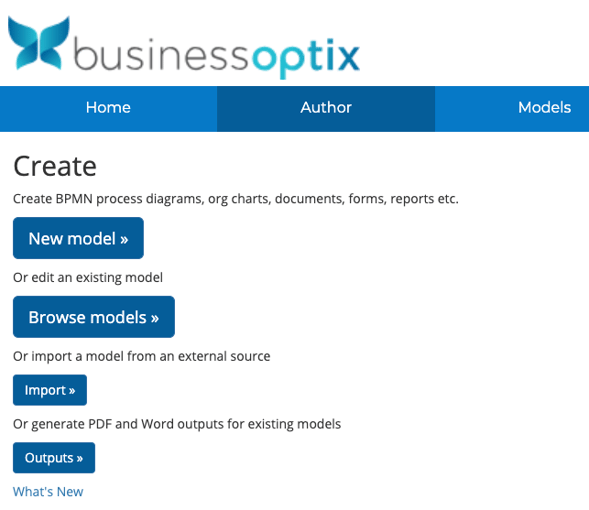
Log into your Library and select Author from the menu then select Import.
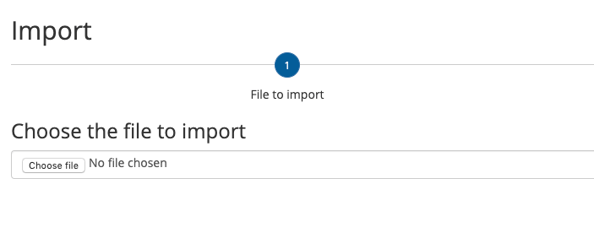
- Select the CSV file you want to import
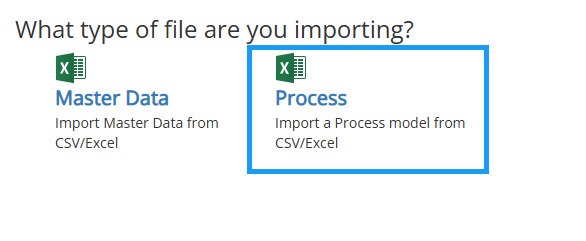
- Select the Import format "Process" from the Excel/csv options.
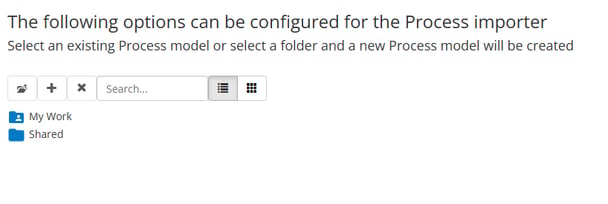
- Select which folder you want to import the model to.
- Ensure the column mappings from the Excel file are set to the correct process attributes on the importer.
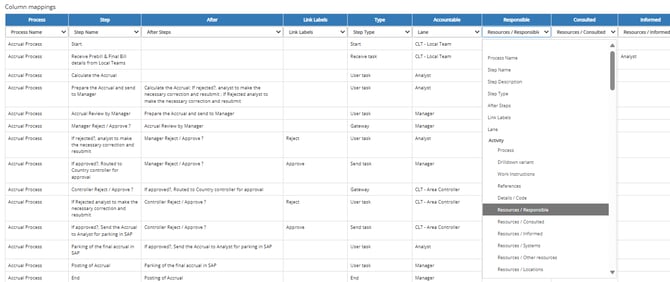
- Review the model that you've created, edit it. Or if you need to you can edit the CSV and then start again.
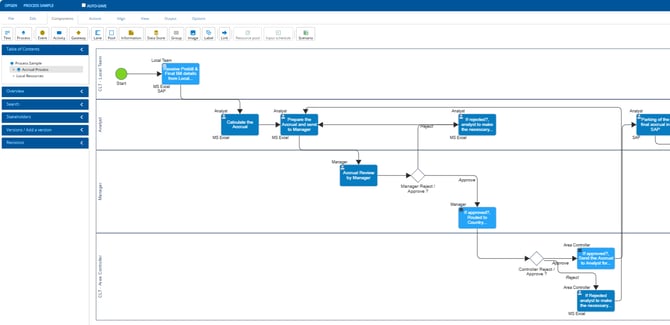
Example
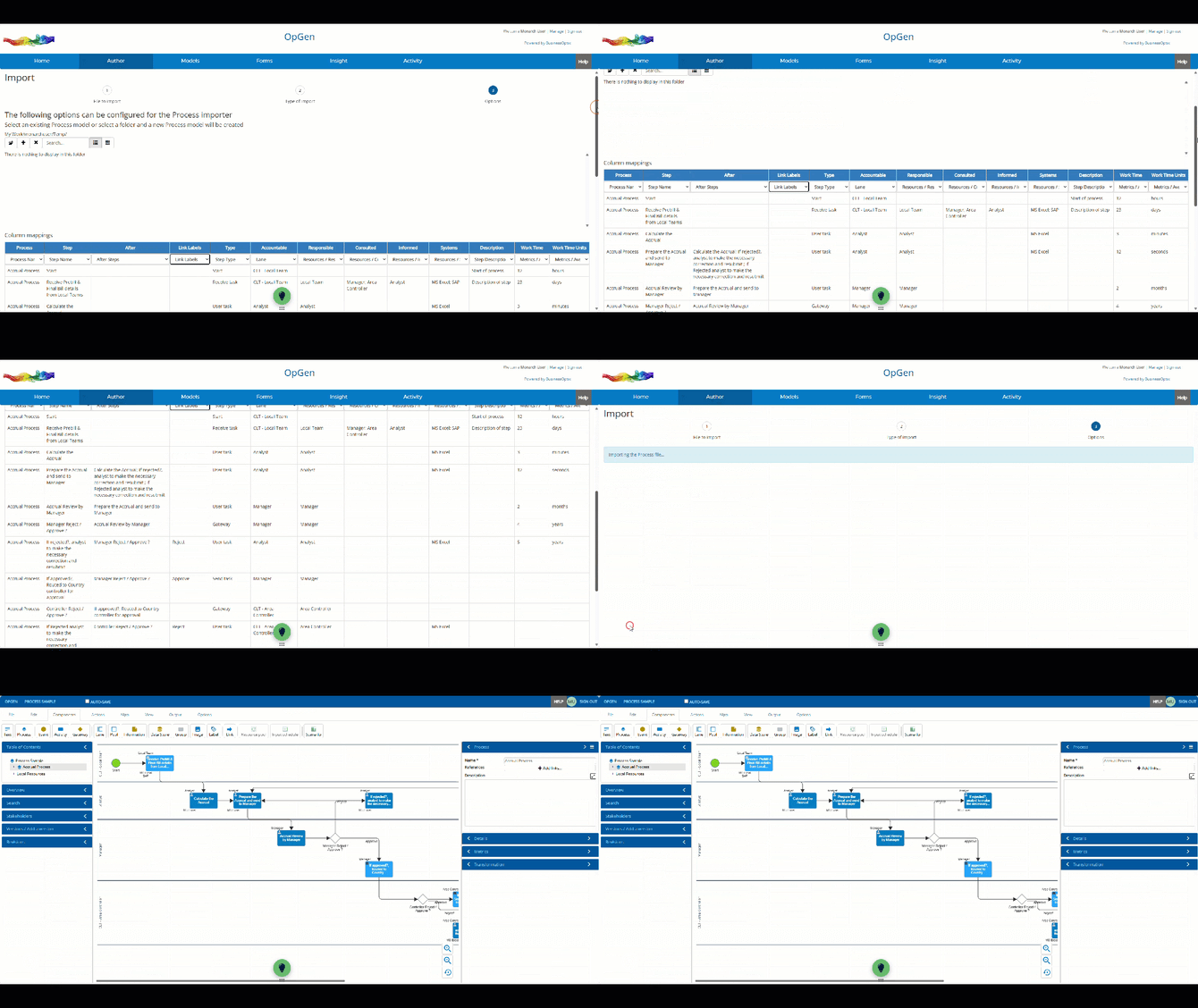 Importing a Process CSV into BusinessOptix