
Overview
The Customer Portal provides users with a central place to view and manage all their support tickets. From here, you can track the progress of any ticket you’ve raised with the Help Desk, request access to view your organisation’s tickets, and communicate directly with the support team in a clear, user‑friendly interface. The portal also allows you to submit new tickets without leaving the platform.
Accessing the Customer Portal
You can access the Customer Portal in two ways:
-
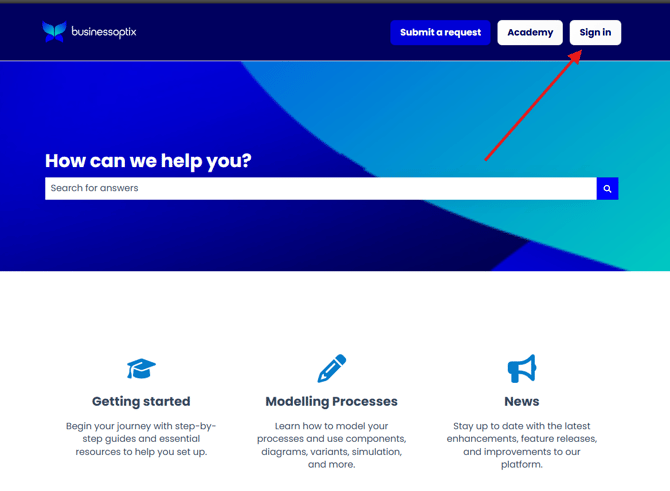
The Sign in button located in the top bar of the Knowledge Base
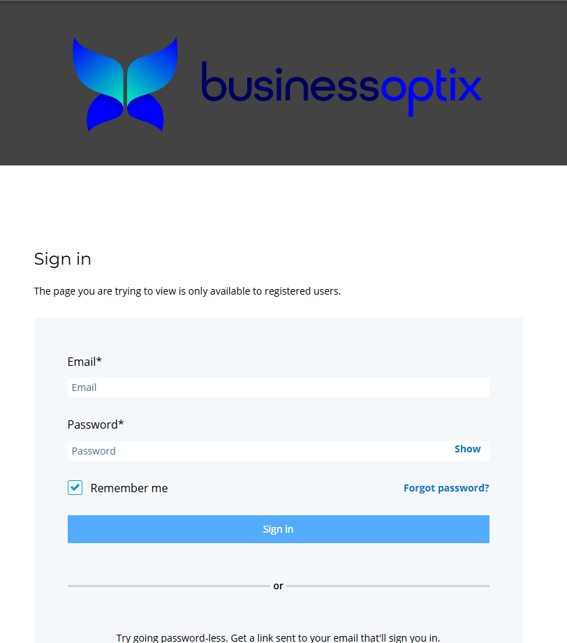
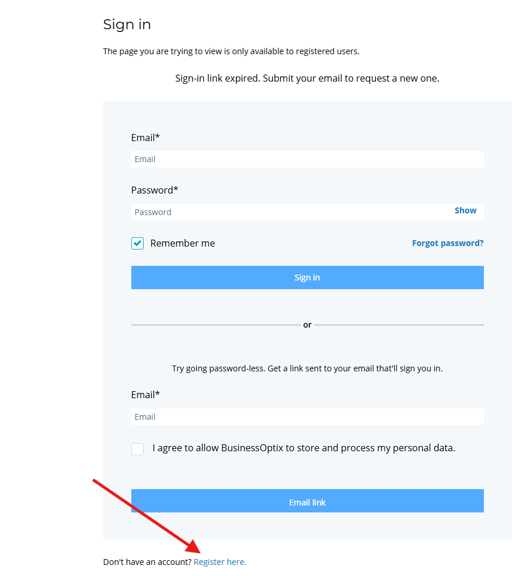
After selecting either method, you will be taken to a portal login page similar to the one shown below.
Getting access
To view your tickets, you must authenticate yourself. You can do this by either:
- Signing in using a password‑less method
- Registering an account for ongoing access
Password-less Sign-in
To sign in without a password:
-
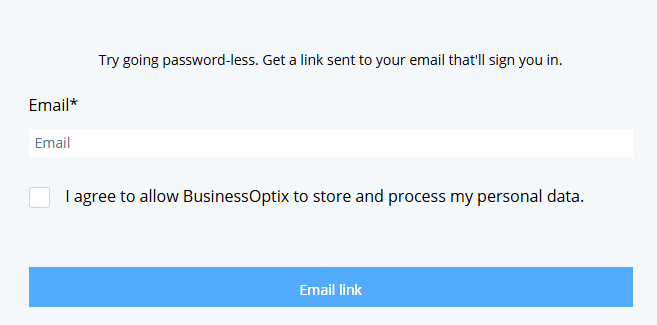
Enter your email address.
-
You will receive a one-time sign‑in link by email.
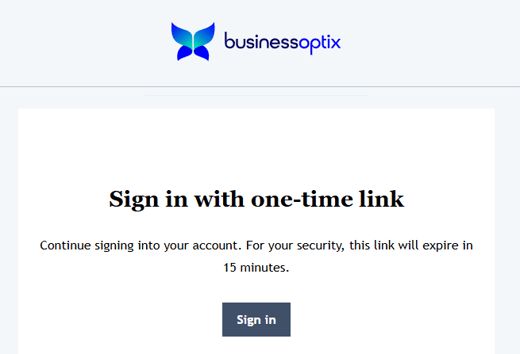
- Click the link to access your Customer Portal.
This method does not require creating a permanent account.
Signing Up
If you prefer having a permanent login:
- Click Register here at the bottom of the login page and proceed to create your account.
Signing In (After Registration)
Once registered, you can sign in at any time through:
- The Knowledge Base (using the Sign In button)
- Your direct Customer Portal link
- The redirect provided when your account is created
How to use Customer Portal
After signing in, you can:
- View tickets you have raised
- View organisation-wide tickets (if enabled for your account)
- Respond to open tickets (or re-open closed ones if needed)
- Create new tickets directly from the portal
Viewing Tickets
By default, the main page displays all tickets associated with your account. You can access this page here.
Here you can:
- Search for tickets
- View key ticket fields and status
- Filter by ticket status
- Export your ticket list to CSV
My tickets
All tickets raised under your user account appear on the default landing page of the portal.
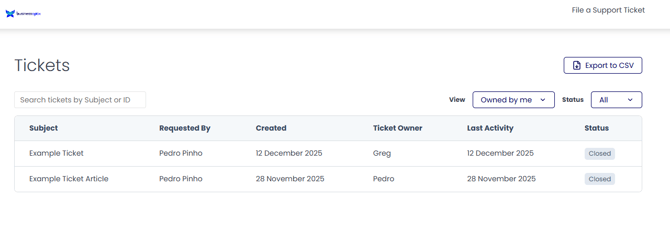
To view ticket details, click the ticket’s subject.
This opens a full conversation history between you and the Support team.
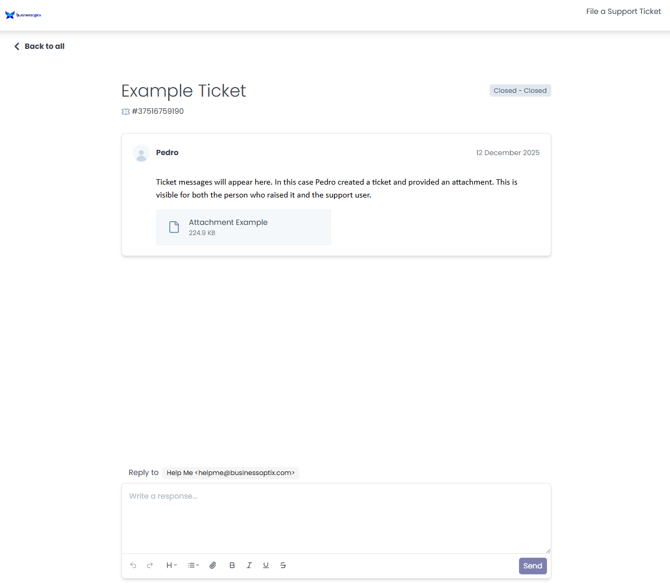
To return to the main ticket list, use either:
- The logo at the top left
- The < Back to all button
My Organisation’s Tickets
If you have been granted organisation-wide access, an additional dropdown becomes available.

To view organisation tickets:
- Click the dropdown right next to View.
- Select Owned by organization.
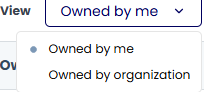
You will now see all tickets submitted by your organisation, including your own.
Note: Organisation-wide access is disabled by default for security reasons.
To enable it at no extra cost, contact our support team at helpme@businessoptix.com
Submit a new ticket
You can create a new support ticket in two ways:
Send an email to helpme@businessoptix.com
Customer Portal
Use the File a Support Ticket form available:
- At the bottom of the Customer Portal main page
- At the top right corner of the screen
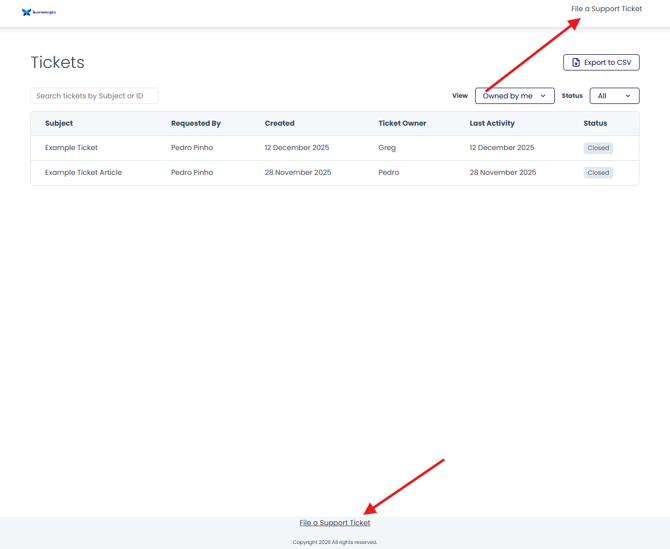
The form allows you to submit your issue directly within the portal.
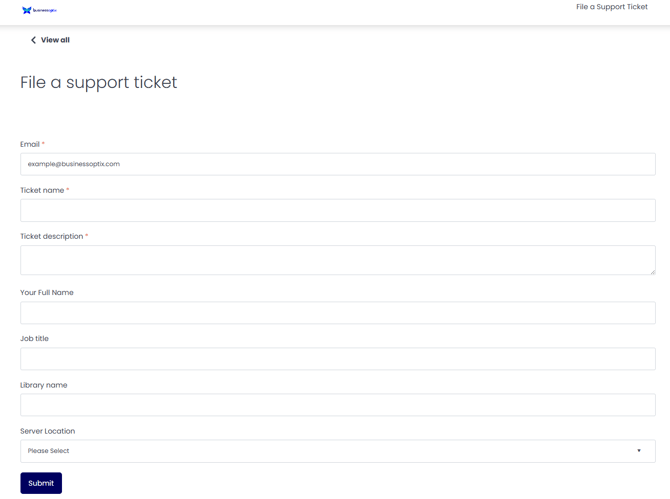
Once submitted, you will receive an email confirmation that your ticket has been received. Our support team will respond shortly thereafter.