
Overview
Color swatches are part of dashboard configuration and are defined through master data. Their purpose is to provide a mechanism for color consistency across one or more charts, whether in a single dashboard or across multiple dashboards.
For example, a common pattern is to indicate good performance in green, poor performance in red, and an intermediate state in amber or orange. Without color swatches, dashboards may use different colors or different shades for the same meaning, creating confusion for users. Color swatches allow you to standardize those colors so that every chart tells the same visual story.
BusinessOptix supports two types of color swatch:
-
Sequential — A palette of colors applied to chart elements in order. Use a sequential swatch when you simply want a consistent set of colors across your charts, such as different shades of blue for a bar chart or a curated set of contrasting colors.
-
Categorical — A mapping of specific data values to specific colors. Use a categorical swatch when the color itself carries meaning, such as ensuring that a particular status value is always displayed in the same color regardless of which chart or dashboard it appears in.
Out-of-the-Box Color Swatches
BusinessOptix provides a set of pre-built color swatches that you can use immediately without any configuration. These cover common use cases and give you a starting point for dashboard styling.
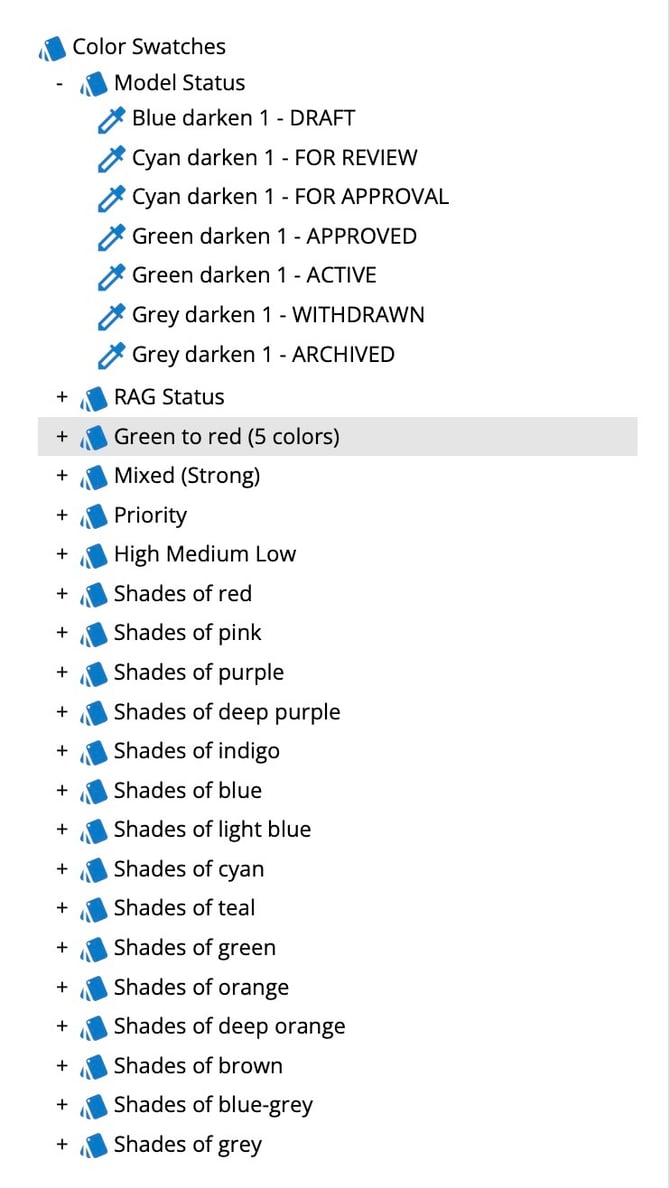
To edit the available swatches, navigate to Master Data and locate the color swatch entries. You can use any of these directly in your dashboard charts, or use them as inspiration when creating your own.
Creating a Color Swatch
Color swatches are created and managed through master data.
Creating a Sequential Color Swatch
A sequential color swatch defines an ordered list of colors that are applied to chart elements in sequence.
- Navigate to Author, select New Model and select the option to create a new color swatch.
-
Give your swatch a meaningful name (e.g., "Corporate Blues" or "RAG Status").
-
Select Sequential as the swatch type.
-
Add your colors in the order you want them applied. Each color is defined by its hex value or using the color picker.

- Save the color swatch.
Creating a Categorical Color Swatch
A categorical color swatch maps specific data values to specific colors. This is configured in two parts: the swatch definition (in master data) and the column mapping (in the dashboard).
Part 1 — Define the value-to-color mapping:
1. Navigate to Author, select New Model and select the option to create a new color swatch.-
Give your swatch a meaningful name (e.g., "Model Status Colors").
-
Select Categorical as the swatch type.
-
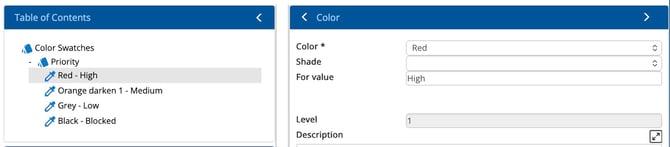
For each entry, specify the value and the color it should map to. For example:
- "Approved" → Green
- "In Review" → Amber
- "Draft" → Gray
Part 2 — Map the data column (in the dashboard):
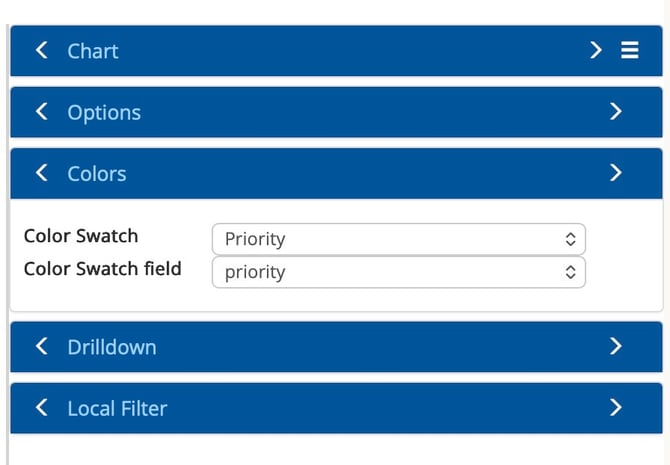
When you apply a categorical swatch to a chart in your dashboard, you also need to tell the chart which column in your data provides the values to match against. This is configured in the dashboard chart settings.
Using a Color Swatch in a Dashboard
Once you have a color swatch available — whether out-of-the-box or one you have created — you can apply it to any chart in your dashboard.
-
Open your dashboard in edit mode.
-
Select the chart you want to configure.
-
In the chart settings, locate the colors tray
-
If you selected a categorical swatch, you will also need to specify which data column provides the values that the swatch should match against.
-
Save your dashboard.
The chart will now use the colors defined in your swatch. If the same swatch is applied to charts across multiple dashboards, those charts will use a consistent color scheme.
Tips
- Plan your swatches before building dashboards. Agreeing on a standard set of color swatches across your organization ensures consistency from the start.
- Use categorical swatches for status-driven data. Whenever the color represents a meaning (e.g., RAG status, approval state), a categorical swatch ensures that meaning is consistent everywhere.
- Use sequential swatches for general charting. When you just need a visually appealing and consistent palette, a sequential swatch keeps things tidy without requiring value mapping.
- Reuse swatches across dashboards. The real power of color swatches comes from applying the same swatch to multiple charts and dashboards, so your users see a consistent visual language.