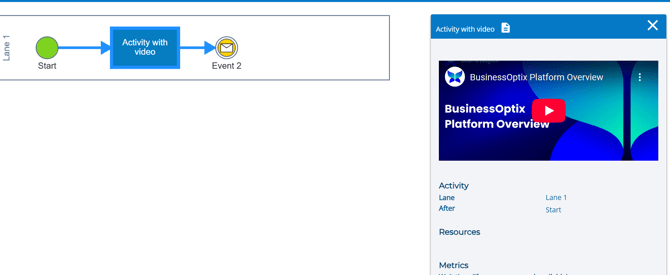
Overview
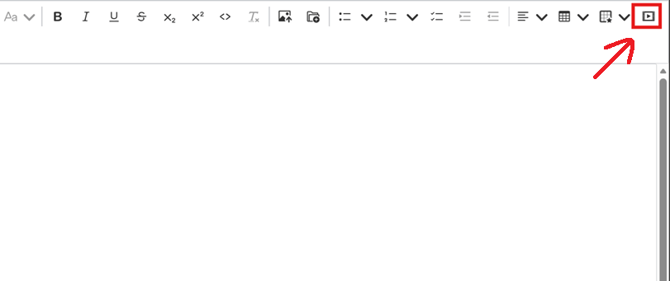
As an Author, you may want to insert videos into description fields to help viewers better understand how to complete a task. When editing a model in Author, videos can be added using the Insert Media button or by embedding them directly through the source code view.
Pre-Requisites
- You have Author permissions in BusinessOptix.
Inserting videos
- Open the model where you want to add a video.
- Select any component that contains a Description field or Work Instructions.
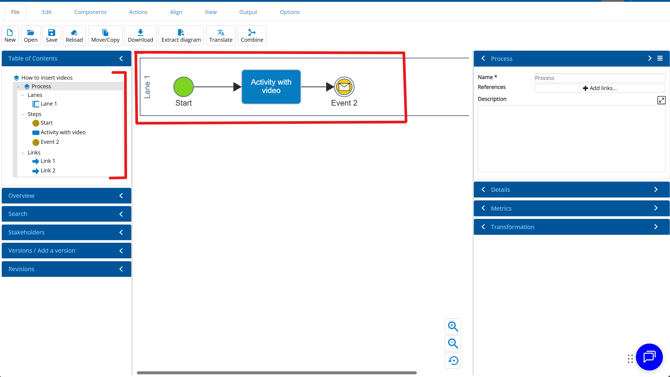
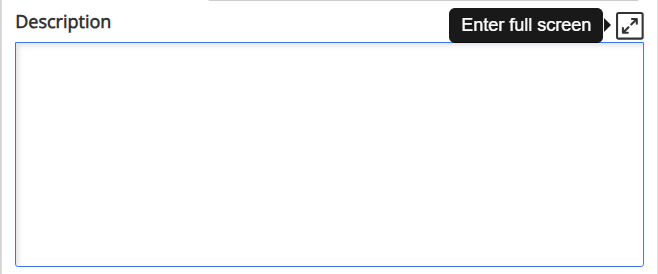
- Locate the description field, then select Enter full screen.
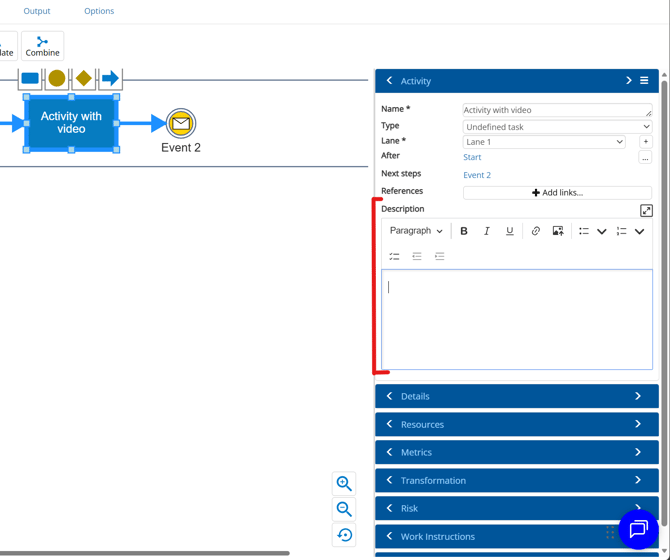
Through Insert Media
- Click on the "Insert Media" button
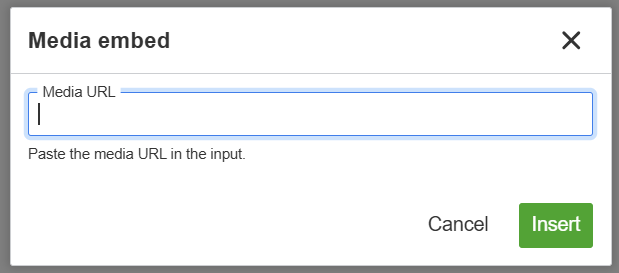
- Paste the URL of your video.
Supported platforms
-
YouTube
-
Dailymotion
-
Vimeo
Through Embedding videos (Source code)
Note: This feature must be enabled for your library.
If you wish to enable it, please contact helpme@businessoptix.com to request enablement.
-
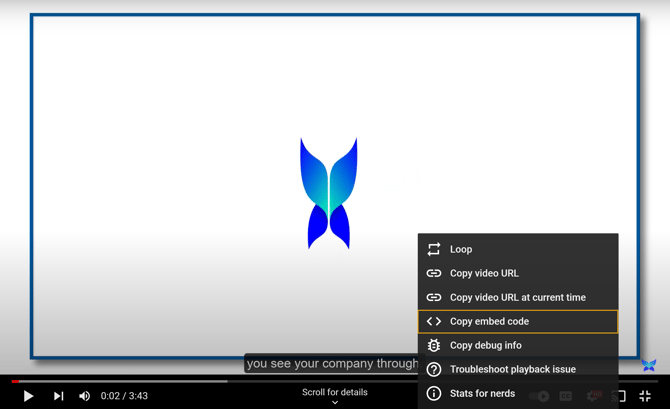
On YouTube, navigate to the video, right‑click, and select Copy embed code.
- In the editor, click the Source button.

- Paste the embed code into the editor.
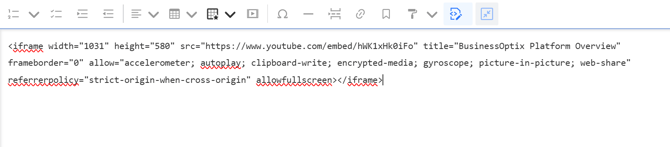
You will now see an <iframe> embed snippet along with parameters such as width and height. These can be adjusted, although we recommend leaving defaults or setting width to 100%
Before continuing, click Source again to return to normal editing mode.
Viewing the video
Save the model and view the HTML output. Select the object that you linked the video to, in this instance it was inserted in "Activity with video". You will now see the video being displayed.