
Process diagrams can become overly complex resulting in the process being difficult to follow. One of the powerful tools available in the BusinessOptix Web Author is the Sub-Process tool. A sub-process represents multiple tasks that work together to perform an important part of the overall process.
To add a sub-process to your process model, follow the steps below.
Step 1:
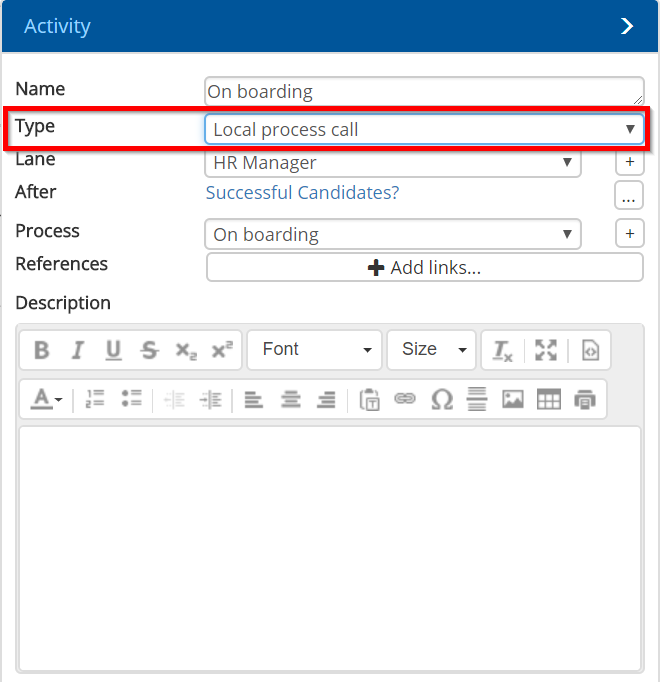
Click on the activity component you wish to add a sub-process to. In the properties inspector on the right, next to 'Type', select 'Local Call Process' from the drop down menu.
Step 2:
In the Ribbon Bar, Under 'Actions' click on the 'Sub-Process' button.

The chosen activity will now have a a plus sign symbol added to it. This symbolises that this activity has a sub-process.
Step 3:
Click on the plus sign symbol on the activity.
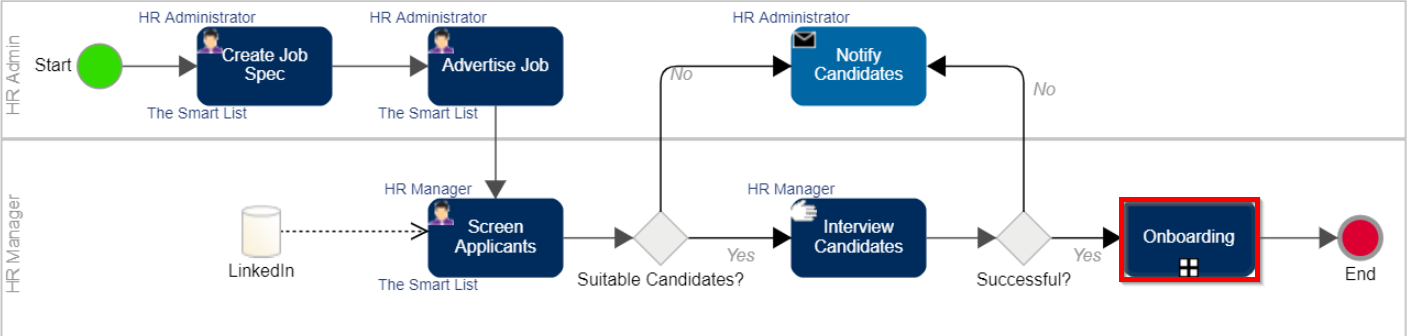
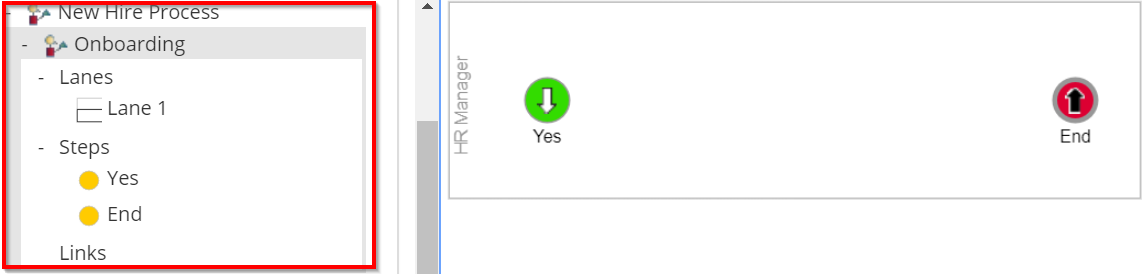
This will direct you to the sub-process diagram. Here is where you can create the sub-process diagram. Under the table of contents you can see it splits the sub processed activity from the overall process.
Step 4:
Once the sub-process has been created, the 'End' button can be clicked to go back to the main overall process.
