
Overview
In a process map, components are connected using links. These links represent the flow of the process and define the relationships between components.
Pre-Requisites
-
You have an Author license in your Library.
Linking components
After opening a process map in Author, you will see an interface similar to the example below:
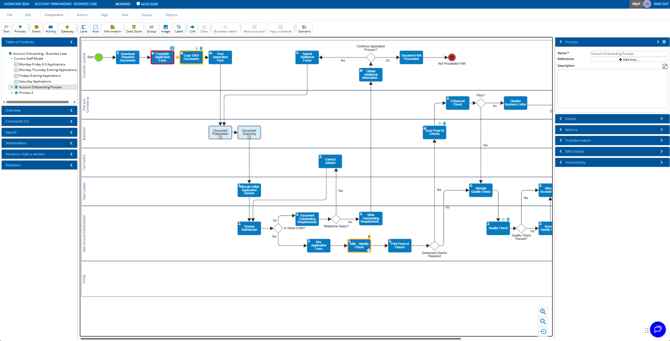
Note: Your component trays and top menu may vary depending on your configuration.
There are three ways to link components:
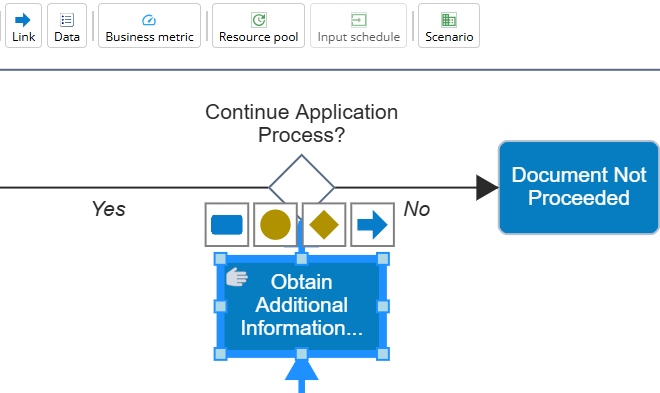
- Using the link icon after selecting a component
- Through the Components tab in the top menu
- Using the After option in the component tray on the right-hand side
Linking Through Component Selection
- Select the component you want to link from.
- Click the Link (arrow) icon.
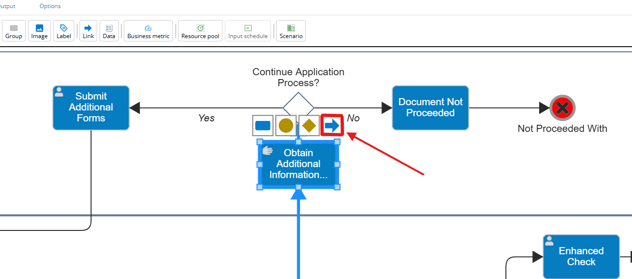
- Drag your cursor to the target component and release to create the link.
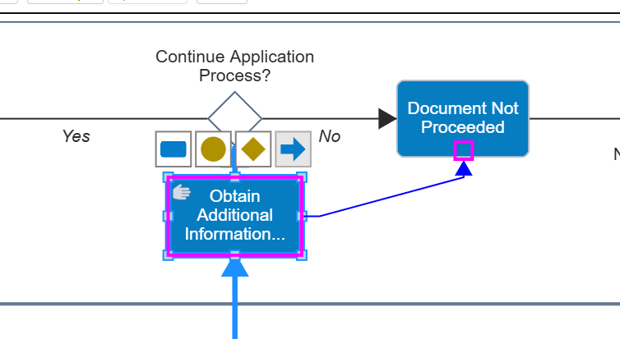
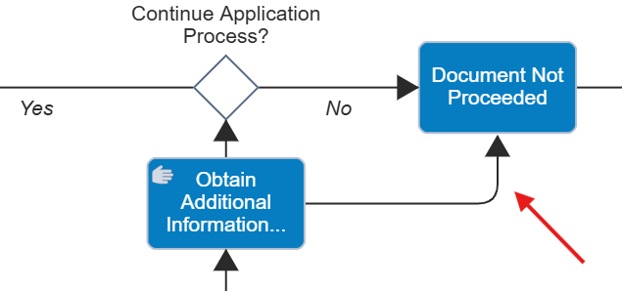
The two components will now be connected as shown below:
Linking Through the Components Tab
- Open the Components tab from the top menu.
- Select the component you want to link from.
- Click Link.
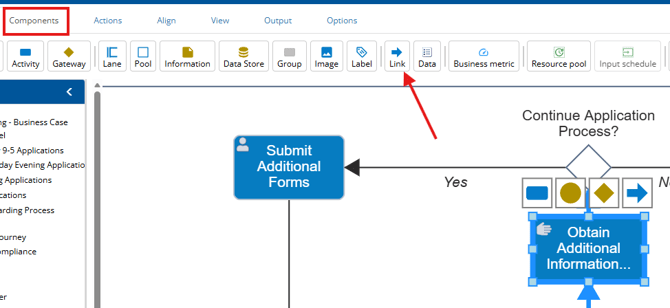
- Click the component you want to link to.
This creates a direct link between the selected components.
Linking Through the Component Tray (After)
- Select the component you want to modify.
- In the right-hand component tray, find the After option.
- Click the ellipsis
 next to After.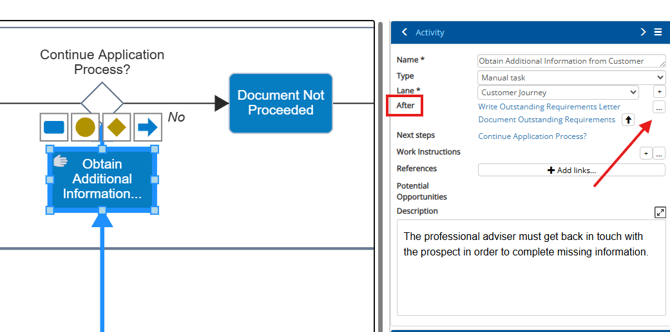
- Choose the component you want to link to.
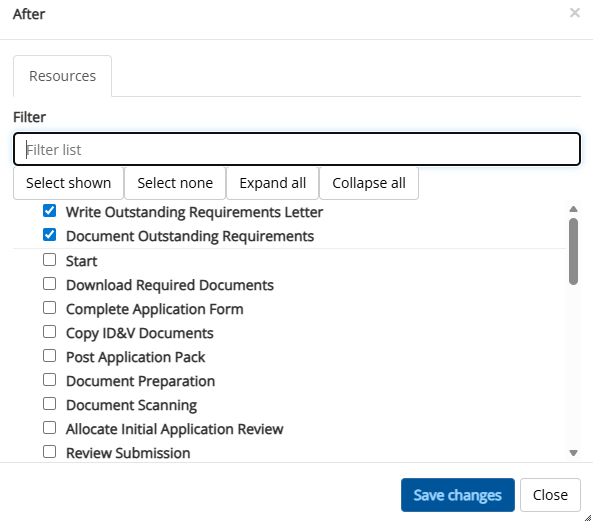
This allows you to set all components that link to your current component.
Link details
When selecting a link within a process map, you will see several trays containing configurable fields.
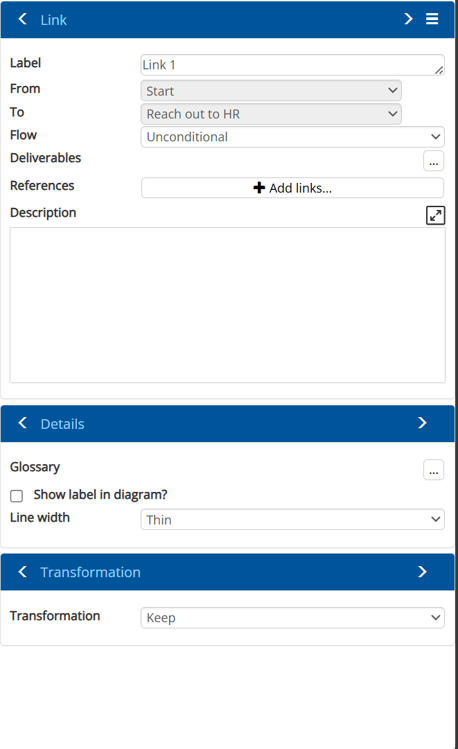
Note: The trays available to you may differ depending on your Library’s customisation settings. Some libraries may display additional trays, while others may show fewer.
Trays
Link tray
This tray contains the main properties of the link itself.
| Name | Description | ||||||||
| Label | The name displayed on the link. | ||||||||
| From | The component where the link originates. | ||||||||
| To | The component where the link ends. | ||||||||
| Flow | Indicates the type of link:
|
||||||||
| Deliverables | Master Data file for storing links to documents. | ||||||||
| References | External documents, URLs, or resources relevant to the link. | ||||||||
| Description | Additional notes or context explaining the purpose of the link. |
Details tray
This tray includes visual and terminology-related options.
| Name | Description |
| Glossary | Master Data file for linking to acronyms, and others. |
| Show label in diagrams? | Determines whether the link label is displayed on diagrams. |
| Line width | Adjusts the thickness of the link line on diagrams. |
Transformation tray
This tray contains fields related to Transformation. You can read more about Transformation here.
| Name | Description | ||||||||||
| Transformation |
Transformation action required:
|