
This article covers that work. For what the capability is, see What BusinessOptix MCP is; for connecting an assistant and asking questions, see Using BusinessOptix MCP.
Before you start
This is author work, done in BusinessOptix Author against the data source itself. You need:
- An author licence.
- The MCP for Data Sources extension installed on the library. This is what adds the Enable MCP use option. If you cannot see it, the extension is missing — ask BusinessOptix customer support, per Enabling MCP on a library.
- An assistant connected to the library, so you can see your work as a user sees it. Using BusinessOptix MCP covers connecting one.
Each data source you expose becomes one of the questions a user's assistant can offer to answer. When someone asks their assistant what your library can tell them, what they get back is the list of data sources you have enabled, described in the words you have written.
Step 1 — Enable the data source for MCP
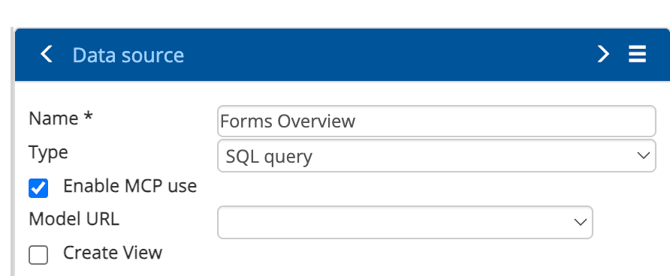
Open the data source and tick Enable MCP use. Until this is ticked, the data source is invisible to MCP no matter how well described it is.
Expose deliberately rather than exhaustively. A library may hold hundreds of data sources; a focused set of well-described ones produces better answers than everything at once, because the assistant has less to disambiguate between.
Step 2 — Describe the data source
In the data source's Documentation section, use Description to say what the data source answers and when it should be used. This is the text an assistant reads when deciding whether the data source is relevant to a question, so it is the single highest-leverage thing you can write.
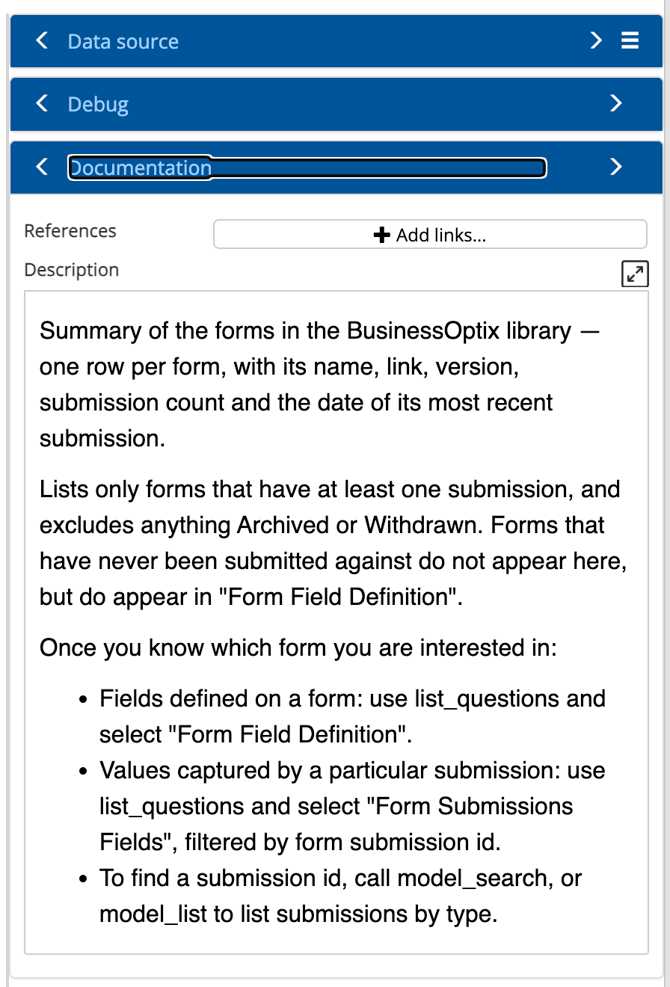
Four things make a description work. The example above does all four.
State the grain. Say what one row represents, especially when it is not what a reader would assume. "One row per form." "One row per component, not per input field." "One row per process map, not per model." Getting this wrong is how counts come out wrong.
Say what is included and excluded. "Lists only forms that have at least one submission, and excludes anything Archived or Withdrawn." Without this, an assistant reports a partial set as though it were complete.
Point to related data sources. Say where to go for the thing this data source does not cover, naming the other data source. This is what lets an assistant chain from an overview to detail rather than giving up or guessing.
Say what an empty value means. "Process map description is optional — its absence carries no meaning." One sentence like this prevents an assistant inferring something from a blank field.
Write for someone competent who has never seen your library. The assistant has no institutional knowledge, no sense of what your organisation takes for granted, and no way to ask a colleague what a column really holds.
Step 3 — Describe the columns
Select a column and describe it in the same way. Column descriptions resolve ambiguity that names alone cannot.
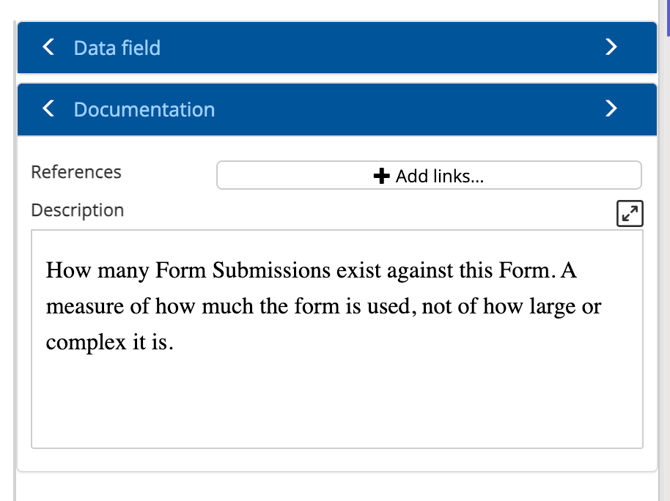
This example shows why it matters. The column is named form type, but it holds the form's name as users know it. An assistant reading the name alone would reasonably treat it as a classification and use it wrongly. The description corrects that, and goes further by saying what the column is for — the label to use when naming a form.
So for each column: give the functional meaning rather than a restatement of the name, add example values where they clarify, and note anything surprising about the format or the range.
Columns whose names are already unambiguous need less. Concentrate on the ones where a reasonable reader would guess wrong.
Checking your work
The quickest test is to ask an assistant connected to the library:
What questions can you answer about this library?
The list that comes back is what you have exposed, described as you have described it. Reading your own descriptions as an assistant receives them shows up vagueness quickly.
Then ask a question the data source ought to answer, phrased as a colleague would phrase it rather than as the data source is named. If the assistant finds the right data source from a natural phrasing, the description is doing its job. If it does not, add the vocabulary people actually use to the description and try again.
Where to start with an existing library
Libraries built before MCP have data sources without descriptions, since there was nothing reading them until now. That makes describing them the one piece of work that turns an existing library into an answering one.
Rather than working through everything, take the data sources behind the questions people actually ask, describe those properly, and extend from there. A handful of well-described data sources gives you a working capability straight away.
A reasonable order:
- The three or four data sources behind the questions your team asks most often.
- Whatever people ask for next, as it comes up.
- Anything an assistant is visibly struggling to find, which its answers will tell you.