
This release focuses on keeping you informed and in control — with smarter notifications, cleaner navigation, and a more polished commenting experience.
Content Viewing
New
Content Location - when viewing content we now display the model icon using different colors to indicate whether you are viewing the Shared or Stakeholders version of the content.
Workflow attention banner — When you open content that has a workflow awaiting your action, a banner now alerts you immediately. No more missed approvals or stalled processes — you'll know what needs your attention the moment you open it.
Back to top — Long content now include a quick-navigate button at the bottom of the page, saving you the scroll back to the top.
Improved
Adobe Acrobat style selection — For libraries with multiple Acrobat document styles, we've improved how the correct style is selected when viewing content.
Comment layout — The commenter's name and timestamp are now displayed on separate lines, giving both room to breathe regardless of name length or how long ago the comment was made.
Ampersand handling — File names and URLs containing ampersands are now handled correctly.
Fixed
Stakeholder content routing — Users with access to content in both Shared and Stakeholders were occasionally shown Shared content when requesting Stakeholders content. This now routes correctly.
Hyperlinks opening twice — External links set to open in a new tab no longer trigger opening of two tabs.
Comment pre-population — Resolving a comment no longer carries its text forward into the next new comment on the model.
Print output — Printing a document no longer includes the navigation menu in the output.
@mention keyboard focus — Adding an @username to a comment no longer shifts keyboard focus to the close button.
Discussion cancel flicker — Starting and then cancelling a new discussion no longer causes a brief UI flicker.
Dashboards
Dashboards get an upgrade this release — with smarter refresh behaviour, more flexible charting options, and broader data source support.
New
Configurable auto-refresh — Dashboards can now be configured to automatically refresh when any user updates the underlying content. Users are notified when data has changed and can disable auto-refresh if they prefer to work undisturbed.
Local filters on charts — Charts now support configurable local filters, giving viewers more control over the data they see without affecting the wider dashboard.
Filter count indicator — The dashboard filter button now shows how many filters are active, making it easy to spot when filters are applied even when the filter menu is closed.
Per-column colour swatches on tables — Tables can now be configured with colour swatches on each column individually, allowing for richer visual differentiation across your data.
Sort order on hierarchy diagrams — Sort order is now configurable on hierarchy diagrams, giving you control over how your organisational or process hierarchies are displayed.
Union and lookup data source support — Dashboards now support data sources that have a union or lookup data source configured, broadening the range of data you can visualise.
Improved
Smarter tab loading — In multi-tab dashboards, switching between tabs now only re-requests data from the server when the data for that tab has actually changed. This means faster tab switches and less unnecessary load.
Long category names on charts — Charts with lengthy category labels now render more cleanly.
Scatter and bubble chart rendering — Visual rendering of scatter and bubble charts has been improved.
Colour swatch coverage — Colour swatches now work on bubble charts and display correctly when configured against a field other than the category field.
Fixed
Chart averages showing sums — Charts configured to display an average were incorrectly showing the sum. This now calculates correctly.
Timeline chart updates — Timeline charts now correctly update on data refresh and filter changes.
Hierarchy diagram filtering — Hierarchy diagrams now update correctly when a filter is applied to the displayed data.
Hierarchy diagram help icon — The help icon on hierarchy diagrams now displays when configured.
Filter causing navigation loss — Reducing displayed content via a filter could sometimes make the application-wide navigation bar inaccessible. This has been corrected.
Custom CSS scoping — Custom CSS entered during dashboard configuration is now only applied when viewing the dashboard, regardless of the class names used.
Colour swatch stencil deployment — The colour swatch stencil is now included as part of the library deployment.
Model as a Sheet
Model as a Sheet takes a step forward this release — with new capabilities for master data management, configurable actions, and a more robust editing experience.
New
Business-valid row suggestions — Model as a Sheet can now display rows that don't yet exist in the model being edited but are valid based on data combined from other models. This makes it significantly faster to add new parts into Master Data without leaving the sheet view.
Configurable action buttons — Configurers can now add buttons to a Model as a Sheet and associate each button with a workflow or JavaScript action, enabling inline automation directly from the sheet.
Configurable sort order — Model as a Sheet can now be configured with a default sort order on one or more columns, so data is presented in the right order from the moment it loads.
Dual scroll bars — A horizontal scroll bar now appears above the table as well as below it, making it easier to navigate wide sheets without scrolling to the bottom first.
Improved
Read-only enforcement for non-Authors — Editing is now restricted to users with an Author licence. All other licence types see Model as a Sheet in read-only mode, providing clearer access control.
Fixed
Select all after sorting — Select all was not always working correctly after the user had sorted the sheet. This now behaves reliably regardless of sort state.
Select/deselect all checkbox — The "all" checkbox no longer remains ticked after a deselect all operation.
First column header missing — In some configurations, the first column header was not being displayed. This has been corrected.
Dependent choice fields — When choice fields are configured as dependent on each other, the second field is no longer unnecessarily blanked when the first is changed.
File Browse
File Browse gets a cleaner, more predictable experience this release — with smarter sorting, better naming, and several fixes that remove small but persistent frustrations.
Improved
Natural language sort order — Content in the File Browser now sorts using natural language ordering, so numbered folders appear as you'd expect: 1. Folder, 2. Folder, 10. Folder — not 1, 10, 2. The default sort has also been changed to name order.
Model name display — Model listings now show the model name rather than the underlying file name, making it easier to identify content at a glance.
Case-sensitive overwrite prompt — When uploading a file with the same name as an existing file but in a different case, you're now prompted to confirm whether you want to overwrite, preventing accidental replacements.
Executive summary tooltip — Viewing the details of a model with a long executive summary no longer truncates the tooltip — the full summary is now displayed.
Fixed
Upload error messages persisting — Error messages displayed during a failed upload are now cleared when a subsequent upload is started.
File move creating folders — Moving a file through File Browse no longer creates an unintended new folder as a side effect.
Folder deletion refresh — Deleting a folder now immediately refreshes the folder listing, preventing users from accidentally recreating a subfolder inside a folder they've just deleted.
Bookmark icon on My Work — Content saved to My Work is not available for bookmarking, so the bookmark icon has been removed from this content.
Forms
A handful of refinements that make forms feel more reliable and harder to lose work in.
Improved
Unsaved changes prompt — When you attempt to close a form that has been modified, you're now prompted to continue editing, discard your changes, or save — so you never accidentally lose work.
Save button state — The save button is now disabled when no fields have been modified, giving a clear visual signal that there's nothing to save.
Image handling — Image display within forms has been made more consistent, ensuring images can be reliably viewed.
Fixed
First save errors — The first save of a form is now handled more consistently and no longer occasionally displays an error message.
Library Wide Navigation
Navigation and library-level features get tighter controls and a more polished experience this release.
New
Message acknowledgement requirement — Library messages and announcements can now be configured to require users to check an acknowledgement box before continuing into the library, ensuring important communications aren't missed.
Improved
Search - the display of search results has been enhanced both visually and in its 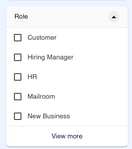 organisation. When using advanced search we now only display the top five matching filter values for each category, with the option to display more if there are more than five that match.
Dashboard home page behaviour — When a dashboard is set as the library home page, clicking the library-wide home icon now returns you to the first page of the dashboard rather than an intermediate view.
Library name display — The library name shown throughout the platform now reflects the name set in Manage, rather than the library URL.
Main menu tooltip — A tooltip has been added to the main menu icon to help users understand what it represents.
Fixed
Participant and Viewer licence visibility — Users with a Participant or Viewer licence are no longer shown a link to Author.
Edit option on non-editable content — The recent content list was showing an edit option on content types that can't be edited in BusinessOptix, such as Adobe Acrobat files or HTML pages. The edit option now only appears for editable content.
Edit icon opening model output — Clicking the edit icon now correctly opens Author only, rather than also opening model output.
Sidebar and menu overlap — In some situations both the main menu and the model details sidebar were displayed simultaneously. The main menu now closes when the model details sidebar opens.
Additional Fixes
On Tuesday March 24th 2026 the following additional changes were applied to this release.
Dashboard Treeview Sort Order - when using a treeview component in a dashboard the tree is now sorted by default, into alphanumeric order. This removes the requirement to sort the data in the data source.
Dashboard Filter Performance - the performance of dashboard filters with a large number of items has been improved.
Process Transformation Output - when selecting process transformation output from Author it will now open correctly.
Forms Date Handling - dates not in the UK date format could prevent the form from opening.
License Keys - license keys for parts of the platform have been updated. No action required.