Enabling Process Path Variants
Process Path Variants is available on request — contact Customer Support to get it enabled for your library.
Setting up Process Path Variants in a Process Map
-
Open a process model in Author
- Select one or more steps by clicking on them in the diagram. Hold shift to select multiple steps.
- On the Path Variant property you can then see the currently selected variant paths(s). And by clicking on the ellipsis to the right you can change the variant path(s) applicable. You can add or remove path variants from each step at any time.
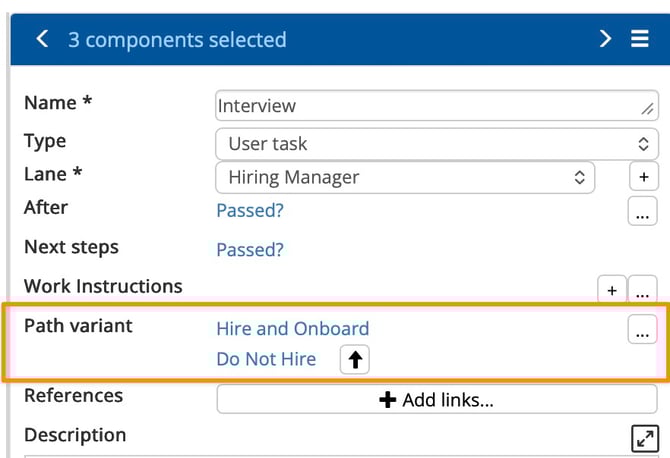
- You'll see the list of available path variants, which can be defined as master data or local to the process model. From this dialog you can also create new variants — either local to the map or as a master data request.
Viewing Process Path Variants in Author
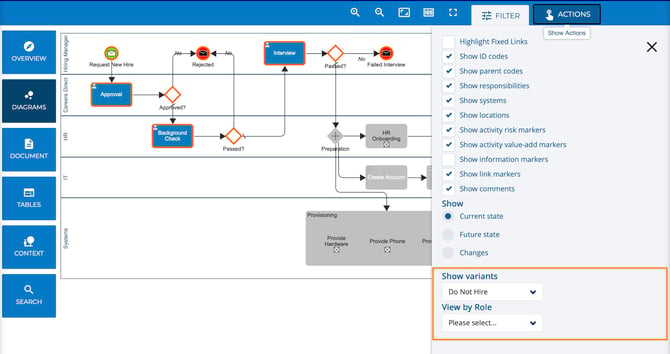
Process path variants can be viewed in Author by selecting the View toolbar and then selecting Show Variants. The appropriately tagged steps will retain their color, all other steps will be shown in grey.

Viewing Process Path Variants as a Viewer
As a viewer or a participant you can view the process path variants by selecting the filter menu in Process Output. Any step that is not tagged with that process path variant is displayed in grey.