
Before you start
You need three things.
MCP enabled on the library. This is done by BusinessOptix customer support at your organisation's request — see Enabling MCP on a library. If it has not been enabled, no connection will succeed.
A BusinessOptix account with access to the library. Your existing account. Any licence type can use MCP.
An MCP-capable assistant. Any MCP-capable assistant can connect. BusinessOptix has tested with Claude and with the MCP Inspector.
The library address
The MCP server sits inside the library, so its address follows the library's own:
https://<server>/<library>/mcp<server> is the BusinessOptix server you sign in to and <library> is the library you want to reach. If you can navigate to a library in your browser, you can construct its MCP address from what you see there.
For example, a library called ExampleLibrary on the UK server:
https://uk.businessoptix.com/ExampleLibrary/mcp └─── server ───┘ └── library ──┘ └┬┘ always /mcpConnecting your assistant
The steps depend on the assistant, but in most cases it means adding a custom connector and pasting in the address above. You do this once per library.
In Claude, on a Pro or Max plan: go to Settings > Connectors, click + Add custom connector, paste the library address, and click Add.
In Claude, on a Team or Enterprise plan, an organisation owner adds the connector once at Organization settings > Connectors. Members then connect and sign in individually from their own settings. If the option to add a custom connector is not available to you, this is usually why.
Anthropic's own instructions are kept up to date at Get started with custom connectors using remote MCP, with background on connectors generally at Use connectors to extend Claude's capabilities.
One thing to check with your IT team. Assistants connect to BusinessOptix from their own provider's infrastructure rather than from your machine, so your BusinessOptix server has to be reachable from the public internet. This is the normal position for BusinessOptix SaaS. If your deployment sits behind a private network or an IP allow-list, speak to your BusinessOptix administrator before going further.
Signing in and granting access
The first time the assistant tries to use the connection, two things happen.
You sign in to BusinessOptix
The normal sign-in for your server, in a browser window. The assistant never sees or handles your credentials.
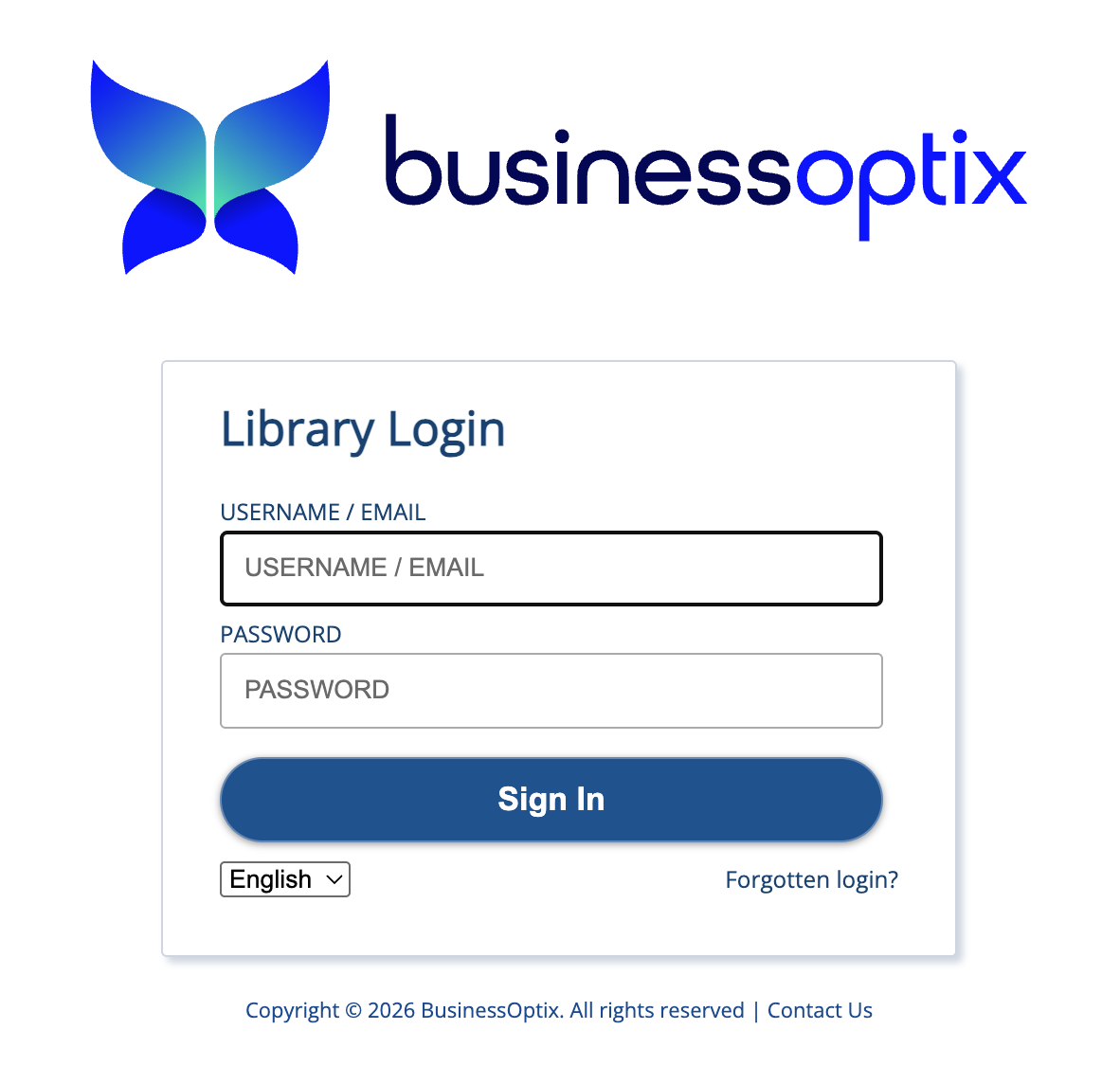
What this screen looks like depends on how your organisation signs in to BusinessOptix. Many customers use their own identity provider through SAML, in which case you will see your organisation's usual sign-in page — the same one you would see logging in to BusinessOptix directly. Others use the sign-in that BusinessOptix provides, shown below. Whichever applies to you, it is the sign-in you already know.
You confirm what the assistant may do
A connection request then sets out which assistant is asking, which library it will reach, and what it is permitted to do.
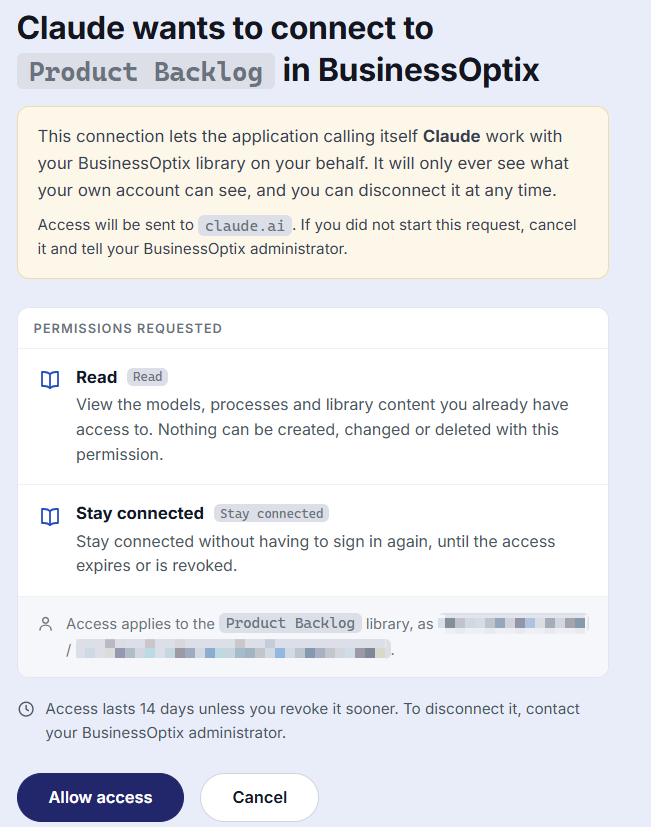
Three things on this screen are worth reading rather than clicking past.
The permissions are read and stay-connected, and nothing else. Read covers the models, processes and library content you already have access to. Stay connected saves you signing in again for each request. There is no permission to create, change or delete anything, because the capability offers none.
The library and the account are named. Check that both are the ones you expect — in the example above the library is named 2025.1. The connection applies to that library alone.
Access lasts 14 days. After that you will be asked to sign in and approve again. This is deliberate: an assistant's access to your library expires on its own rather than persisting indefinitely.
You may also notice the assistant described as an unverified app. This is normal: it means the assistant registered itself with BusinessOptix automatically rather than being registered in advance, which is how MCP connections ordinarily work. Because the name is one the assistant supplies, check it alongside the library and the account. If any of the three are not what you expect, or you did not start the request yourself, cancel and speak to your BusinessOptix administrator.
Once approved, the connection is available whenever you need it, and everything the assistant retrieves is retrieved as you — subject to exactly the permissions you already have.
Finding out what you can ask
Every library holds different content and exposes different data sources, so the questions available are specific to your library. Your library describes itself, so the assistant can tell you exactly what it offers — and that list stays accurate as more data sources are added.
Start by asking what is available
Ask the assistant directly:
What can you tell me about this library?
What questions can you answer about our processes?
The assistant retrieves the list from your library, so what comes back is its actual set of questions rather than a generic menu — and it reflects your own access, so two people may see different lists. This is the quickest way to understand what is available to you.
Then ask in business language
You never need to name a data source or a question. Ask for what you want and the assistant works out how to get it.
A few habits make for better answers:
- Be specific about scope. Which process, which period, which status, which team.
- Say what shape of answer you want. A total, a breakdown by owner, a list you can scan, a comparison.
- Name the model or process if you know it. It saves a search, and avoids the assistant guessing between similarly named things.
- Follow up rather than restarting. The assistant keeps the context of what it has already retrieved, so narrowing or extending a previous question is more accurate than asking again from scratch.
What you get back
The assistant will find and read content, retrieve specific facts, or both, depending on the question. Because answers come from data sources that can be filtered, grouped and totalled, questions like how many, which of these, and broken down by are answered from your data rather than estimated.
Answers are drawn from your library at the moment you ask. They are as current as your content.
Where a question would return a great many rows, asking for a total or a breakdown rather than the underlying rows gives a faster and more useful answer.
An assistant works from the descriptions your library provides, so for anything consequential it is worth asking it which data source an answer came from, and checking that against the source in BusinessOptix.
When something does not work
The option to add a custom connector is not available. On Claude Team and Enterprise plans, an organisation owner has to add the connector centrally before members can connect. Ask whoever administers your organisation's Claude account.
The assistant cannot reach the server. Check the address — the library name must match exactly, and the address ends in /mcp. If the address is right, MCP may not be enabled on that library yet, or the server may not be reachable from the public internet. Your BusinessOptix administrator can confirm both.
You are asked to sign in again. Authorisation lasts 14 days. Signing in and approving again restores the connection.
The assistant says there are no questions available. Search will still work, but answers need data sources that have been enabled for MCP. This usually means the MCP for Data Sources extension has not been installed on the library, or no data sources have been enabled yet. Both are covered in Enabling MCP on a library and Making your library answer questions.
An answer is thinner than you expected. Three usual reasons, worth telling apart.
- You may not have access to the content. Everything is returned as you, so content outside your permissions is not there to be found.
- No data source covers that question. Search will still find relevant content, but precise, tabular answers need a data source behind them.
- A data source covers it but is not described well enough for the assistant to recognise it as relevant. This is the most common cause in an established library, and the most easily fixed — see Making your library answer questions.