
Configuring Email Notifications in a Workflow Step
When editing a workflow step, the properties panel on the right includes an Email accordion. Click its header to expand or collapse it.
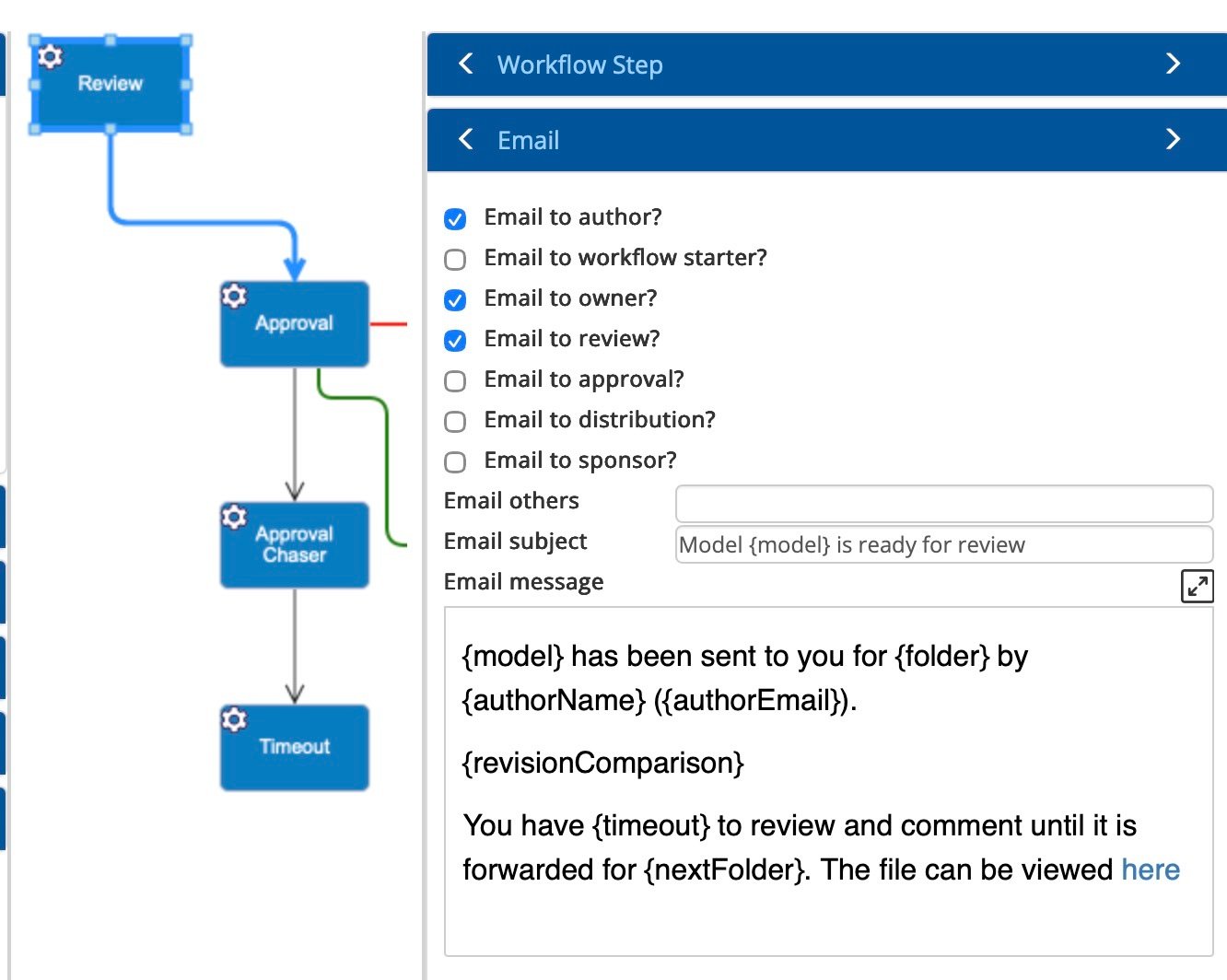
Recipients
Use the checkboxes to select which roles receive a notification when the step is triggered:
- Email to author? — notifies the person listed as the model's author.
- Email to workflow starter? — notifies the user who initiated the workflow.
- Email to owner? — notifies the model's owner.
- Email to review? — notifies the participants assigned to review the model.
- Email to approval? — notifies the participants assigned to approve the model.
- Email to distribution? — notifies the model's distribution list.
- Email to sponsor? — notifies the model's sponsor.
Use the Email others field to enter additional recipients by email address.
Email Subject
The Email subject field sets the subject line for the notification. It supports the same dynamic variables as the message body (see below). For example Model {model} is ready for review.
Email Message
The Email message field is a rich-text editor for composing the notification body. Hover over the tooltip icon beside the field label to see all available dynamic variables. At workflow execution time, BusinessOptix replaces each variable with its corresponding live value.
Available Variables
| Variable | Replaced with |
|---|---|
{model} |
The model name |
{modelUrl} |
The full URL of the model |
{modelUrlWithoutExtension} |
The model URL, excluding the .xbp file extension |
{folder} |
The name of the current folder |
{authorName} |
The model author's name |
{authorEmail} |
The model author's email address |
{ownerName} |
The model owner's name |
{ownerEmail} |
The model owner's email address |
{reviewers} |
A list of the model's reviewers |
{approvers} |
A list of the model's approvers |
{timeout} |
The step's timeout duration |
{expiryDate} |
The date and time at which the timeout expires |
{nextFolder} |
The folder the model will move to after this step |
{workflowStarter} |
The name of the user who initiated the workflow |
{libraryUrl} |
The library URL |
{revisionComparison} |
A link allowing recipients to compare the current version with the previously published version. If the model has not previously been published this will be blank. |
Sample Message
There are a number of starter workflows in your BusinessOptix library. If you take a copy of some of those you can see how they are configured.
The Review step in the Approval workflow body illustrates several variables in use:
{model} has been sent to you for {folder} by {authorName} ({authorEmail}).
{revisionComparison}
You have {timeout} to review and comment until it is forwarded for {nextFolder}. The file can be viewed here.
This serves as a useful starting point — edit the message freely, mixing plain text with any combination of the variables above.